

Manage phishing campaigns
Configure campaign recipients, templates, repeat schedules and delivery windows, then monitor runs, pause delivery, or archive a campaign.
Last updated 24 October 2026
After your baseline assessment, use phishing campaigns to run further simulations and follow changes over time. A campaign holds the audience, templates, and schedule; a run is one occurrence of that campaign.
Before you start
- Select the correct organization and use an account with campaign-management permission.
- Complete the baseline campaign. Add Campaign shows Not available yet until this prerequisite is met.
- Check learner records, domain verification, and allowlisting. Test delivery before a rollout.
- Agree on the intended audience, schedule, and templates with the person responsible for your awareness program.
Find a campaign
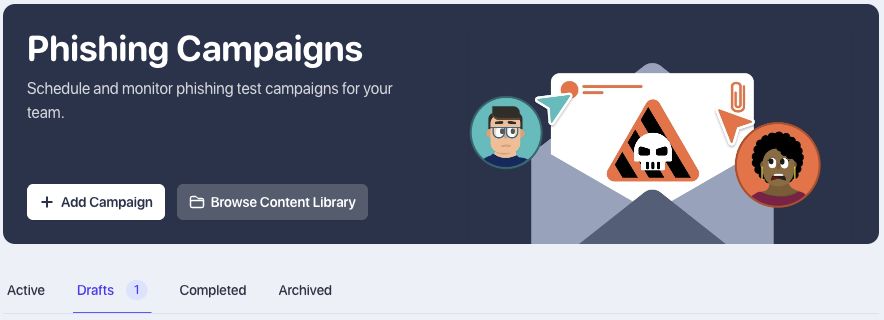
Open Phishing Campaigns in the organization sidebar. Use the status tabs to find the campaign you need:
| Tab | What to look for |
|---|---|
| Active | Ongoing campaigns, paused campaigns, and campaigns still delivering or collecting results. Check each status badge. |
| Drafts | Saved campaigns that have not been started. |
| Completed | Campaigns that have finished delivery and reached their completed state. |
| Archived | Campaigns taken out of active management. |
Set up a campaign
- Select Add Campaign. Give it a Name and an optional Description that other administrators will recognize.
- Choose Repeat: Once (no repeat), weekly, every two weeks, or monthly.
- Set the Start date. A one-time campaign uses a date and time; a recurring campaign uses a start date. Check the time-zone guidance displayed on the form.
- Set an End date if recurring delivery should stop on a particular date. Leaving it blank allows the schedule to repeat indefinitely.
- Configure the delivery window described below, then select Save and Continue to save the draft and move to recipients.
Understand the three delivery settings
| Setting | What it controls | Example |
|---|---|---|
| Repeat | How often the campaign creates a run. | One run every month. |
| Send each run over | How broadly that run's emails are spread out. | Distribute a run over one day rather than one burst. |
| Send emails on / Daily send hours | Which days and hours permit sending. | Weekdays, within a custom daytime window. |
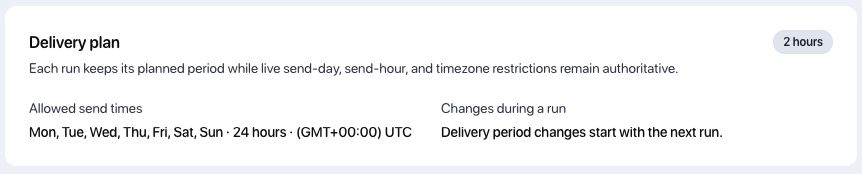
Send each run over offers 2 hours, 1 day, 3 days, 1 week, and Custom. Keep this delivery period shorter than the repeat interval. Select at least one sending day; clear Saturday and Sunday if weekends should be excluded.
Choose Any time (24 hours) or Custom hours. For a custom window, set From and Until, with the end later than the start. Delivery hours use the organization's time zone shown on the form. Review the delivery-plan preview before continuing.
Choose recipients and templates
In the Recipients step, choose Departments or Individual learners. Select the intended departments or search for specific learners, then save and continue. Department selection is dynamic: changes to eligible department membership can change the audience for later runs. Check the current recipient count when reviewing the campaign.
In Templates, select the simulation templates to use. Use Preview where available to review their contents. You can also open Browse Content Library from the campaign list. Finish the template selection and continue to the review page.
Review the schedule, dates, recipients, templates, and delivery plan together. Use Save and Close to return to the saved campaign. Confirm that it is still Draft if you are not ready to send.
Start, pause, or resume
Open the saved campaign's Summary and review its audience and delivery settings before selecting Start Campaign. Confirm its resulting status and schedule preview.
Starting or resuming activates delivery:
Start Campaign and Resume Campaign submit the change directly. A due run can queue emails once the campaign is active. Review the intended recipients and send times before using either action; do not rely on another confirmation screen. For an active campaign, Pause Campaign pauses delivery. A paused campaign offers Resume Campaign to reactivate it. Pausing cannot recall emails already sent. After resuming, inspect the schedule and any unfinished delivery rather than assuming that it starts a completely new campaign.
Inspect runs and results
Open Summary for the campaign status, delivery plan, schedule preview or next-run information, and previous runs. Recipients shows its audience; Templates shows its selected simulations.
Open a previous run to inspect that occurrence's deliveries and outcomes. Use available search and sorting controls to find a recipient or group results by delivery time, template, clicks, or compromises. For date windows, comparisons, and downloadable evidence, use Reports > Phishing Campaigns.
Delivering or a pending-results status does not necessarily mean a campaign is stuck. Emails may still be distributed within the allowed window, or the app may be waiting for the results-collection period to finish. Read the status notice and any expected-completion information before taking action.
Edit or archive
For an organization campaign, select Edit to update its configuration. Delivery-period changes apply to the next run; a run already in progress keeps its planned period. Sending-day, sending-hour, and organization time-zone restrictions still govern delivery. Review recipients and templates carefully when editing an active campaign.
Use Pause Campaign for a temporary stop. Use Archive when the campaign should leave active management: archiving clears its recurring schedule and stops future scheduled work. Do not treat archiving as a temporary pause. Baseline campaigns have different controls and cannot be archived through this workflow.
Troubleshooting
Add Campaign says Not available yet
Check the selected organization and complete its baseline campaign. A visible Add Campaign link does not mean the prerequisite has been met.
I cannot find my campaign
Check Drafts, Completed, and Archived, as well as Active. A campaign with unfinished delivery can remain in the active view while it finishes.
The delivery settings will not save
Read the validation message. Check that at least one day is selected, Until is later than From, the end date follows the start date, and the delivery spread is shorter than the repeat interval.
A campaign has unexpected recipients
Check whether it uses departments or individual selections. Review the current learner records and department membership. A department audience can change between configuration and a later run.
No emails have arrived
Check the campaign status, start date, recurrence, allowed days, daily hours, and displayed time zone. Review its recipient count and templates, then check delivery results and mailbox filtering. Use a delivery test when investigating email routing.
I cannot edit or archive the baseline
The baseline uses a separate workflow. Follow the baseline guide, or contact Prventi support about a baseline-specific issue.