

Start a baseline phishing campaign
Check the prerequisites, start your baseline assessment, monitor its weekday runs, and review the report before creating further campaigns.
Last updated 24 October 2026
Your baseline is the first phishing assessment for an organization. It establishes a starting point for comparing later simulations and deciding where your team needs training.
Before you start
- Select the correct organization and check its learner records. The baseline uses the organization's learners; review the audience before starting.
- Verify ownership of the learners' email domains. A learner can appear under Pending or All before the domain is verified.
- Allowlist Prventi's mail servers, then send a delivery test and confirm receipt.
- Coordinate the assessment with the people responsible for your awareness program and email delivery.
Review the baseline
Open Phishing Campaigns > Drafts > Baseline Campaign. Review its Summary, Recipients, and Templates before starting.
- Recipients lists the audience. Check the count against the learners you intend to assess.
- Templates lists the simulations selected for the baseline. Use Preview to inspect a template where available.
- Summary shows the schedule, delivery plan, and schedule preview.
The standard baseline schedules five runs on weekdays. A run is one occurrence of the campaign. The delivery spread controls how that run's emails are distributed; it does not mean the entire baseline finishes within that period. The standard baseline delivery spread is two hours per run.
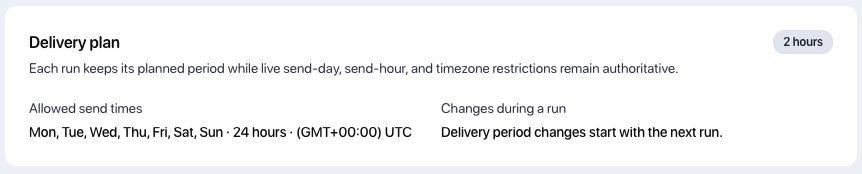
Use Schedule preview to check when the first run would occur. An old draft's dates can differ from the schedule activated when it starts, so check the resulting schedule after activation as well.
Start the baseline
Select Start Campaign from the baseline's Summary when the audience and prerequisites are ready. Check that the campaign becomes active and review its schedule.
Start Campaign submits immediately:
This action activates the campaign directly. A due run can queue simulation emails. Review the recipients and timing first; do not rely on another confirmation screen. The baseline has different controls from later organization campaigns. It does not offer the same Edit and Archive workflow.
Monitor runs and completion
Return to the campaign's Summary to follow its status and previous runs. Open a run to review deliveries and responses. The campaign and reporting views can identify individual learners and their results; treat this information as access-controlled organizational data.
Delivery and assessment completion are separate stages. After the final run finishes delivery, Prventi keeps a results-collection period open. A Delivering or pending-results status can therefore be expected while emails are still being distributed or responses are being collected. Use the status notice and expected-completion information shown in the app.
The baseline report is generated after the campaign completes. Starting a campaign or seeing the final email delivered does not immediately unlock the next campaign wizard.
After the baseline campaign
Review Reports > Baseline Phishing Campaign to identify training needs. Complete any remaining onboarding checklist items, then create and manage further phishing campaigns to measure change over time.
Use learning assignments to assign relevant training and follow completion.
Troubleshooting
Start Campaign is disabled
Check that the organization has learners and that every domain listed in Settings > Domains is verified. Review the onboarding checklist for outstanding delivery setup. Learners waiting for domain verification may appear under Pending or All, rather than Active.
The campaign did not send immediately
Check the schedule preview, the next eligible weekday, allowed sending hours, and the organization's time zone. Delivery is spread across the run's configured period. Review run delivery results and mailbox filtering before starting any additional tests.
The last run has finished but Add Campaign is still locked
Wait for delivery and results collection to finish and confirm the baseline reaches its completed state. If the completion information has passed and the status has not changed, contact Prventi support with the organization and campaign details.
I need to change or restart the baseline
Contact Prventi support for a baseline-specific change. Do not start extra campaigns to compensate for a delivery issue until you have checked the existing schedule and run results.