

Use and understand Defence Boosts
Find refresher exercises, understand adaptive review timing and Boost statuses, manage optional reminders, and review learner history.
Last updated 24 October 2026
A Defence Boost is a refresher exercise that revisits learning over time. It uses spaced repetition to reinforce recall after training. Boost timing adapts to learning and review performance, so a future review is not a fixed deadline shared by every learner.
Required assignments and Defence Boosts are separate views of learning. Check your assigned training for work your organization requires, even when there is no active Boost on your home screen.
Find and complete a Boost
- Sign in with the account you use for training and open Home in the learner portal.
- Check Your next steps for available Defence Boosts and any upcoming-review information.
- Open the current Boost and check its topic, status, and countdown or availability dates.
- Select Start and complete the refresher questions using the lesson's answer controls.
- Read the result, then return to Home to check the current or upcoming review state.
Use the exercise currently offered in the app rather than relying on an old reminder link. Performance can change the next review interval, and another opportunity may replace an earlier one.
When no Boost is available
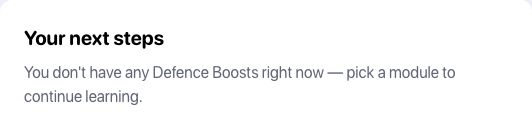
The home screen can say You don't have any Defence Boosts right now — pick a module to continue learning. This is a valid state. You can continue required training or choose an available learning module; it does not mean your account is broken or that all required work is complete.
Understand the status
| Status | Meaning |
|---|---|
| Upcoming / Queued | A refresher is scheduled or waiting to become available. |
| Active | The opportunity is currently available for review. Check its displayed availability window. |
| Completed | The review opportunity has been completed. A later refresher may still be scheduled. |
| Expired | The opportunity's availability has ended, or a newer opportunity has replaced it. Return Home for the current next step. |
Dates and intervals shown in your account are more useful than assuming every review happens a set number of days after a lesson. Content availability and organization membership can also affect which opportunities you can see.
Change optional reminder channels
- Open Profile, then the settings control.
- In Settings > Notifications, select Defence Boosts.
- Set the Email and Push switches to your preference. Each switch saves its change; there is no separate Save button on this screen.
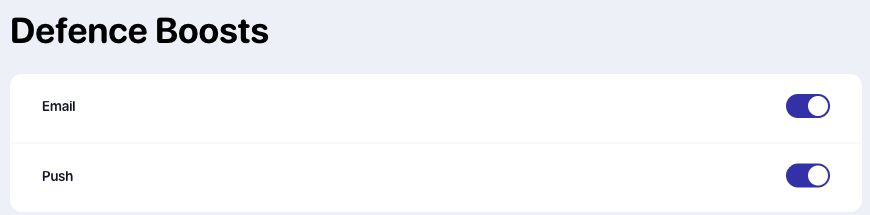
Turning off Boost reminders does not remove eligible exercises from the app. It also does not disable organization-managed training reminders, learner invitations, or phishing simulations. Those categories are labeled Managed by your organisation.
For a completed module that is not assigned to you, Stop these boosts may be available on its Boost card. This stops Boosts for that module, rather than just its reminder emails. Assigned modules cannot use this opt-out. Use Resume boosts where offered to reverse a module opt-out.
For administrators: review a learner's Boosts
Open the organization workspace, then Learners > the learner > Defence boosts. This view separates current or queued opportunities from completed and expired history. Use How it works to read the spaced-repetition explanation and any displayed adaptive intervals.
A learner must have a linked account before account-based Boost history can be shown. Global-content Boosts are account-scoped: an administrator should not assume every global review was generated by that one organization's assignment. Other organizations' private training is excluded from this view.
Use Training Evidence reports for period-based Boost completion evidence. Keep that measure separate from original assignment completion or an overall learning streak.
Troubleshooting
I finished training but do not see a Boost
Check Home for upcoming information and continue any required training. Reviews are scheduled adaptively and need not appear immediately after a completion. Also check whether Boosts for an eligible optional module were stopped.
An emailed link is old or unavailable
Sign in with the same training account and return Home. The linked opportunity may be completed, expired, replaced, or associated with content that is no longer available to you.
I cannot stop Boosts for a module
The module must be completed and not assigned to you for the module opt-out to be available. Reminder-channel preferences are a separate setting; contact your administrator about required training.
Reminders are off but the exercise is still visible
This is expected. Reminder preferences control notifications, while eligible in-app Boosts remain available.
An administrator sees no history
Check the selected organization and learner, their linked account, and whether they have had any review opportunities. An empty history is different from a failed review or a missing required assignment.
For an unexplained schedule or status, contact support with the topic, visible status, and time you observed it.