

Your learner guide
Find assigned and overdue training, start lessons and quizzes, follow learning paths, and understand rewards, games, and learner settings.
Last updated 24 October 2026
Use the learner portal to complete your organization's training and build everyday security habits. Home, Learn, and Leaderboards are in the learning navigation; Data Breaches and Profile are in the account navigation.
Sign in and find your required work
- Sign in with the email address or identity provider associated with your training invitation.
- Open Home. Check the required-module progress and any overdue status. If Assigned to You is shown, open the relevant module card.
- Open Learn > Learning Modules to browse training. Where available, use Assigned to Me for required modules or My Overdue Modules for incomplete modules whose deadlines have passed.
- Use Search to find a module by name. All modules includes available library content and is not a list of only required work.
Assignment filters depend on your organization membership and training. An account with no linked assignments may show only the library view. The message No assigned modules yet is different from a required assignment being completed.
Start a lesson and answer questions
- Open a module and select Start on the available lesson. Later lessons may remain unavailable until you progress through the module.
- Review any lesson guide or materials offered before the quiz.
- On Lesson Ready, select Start Lesson. Some accounts also offer Try new Chat Quiz as an alternative interface.
- Follow the question instructions. For multiple-choice questions, select an answer and then Check. Other question types use the controls displayed on that question.
- Read feedback before continuing. Finish the session and review its result, then return to the module or Home to check your progress.
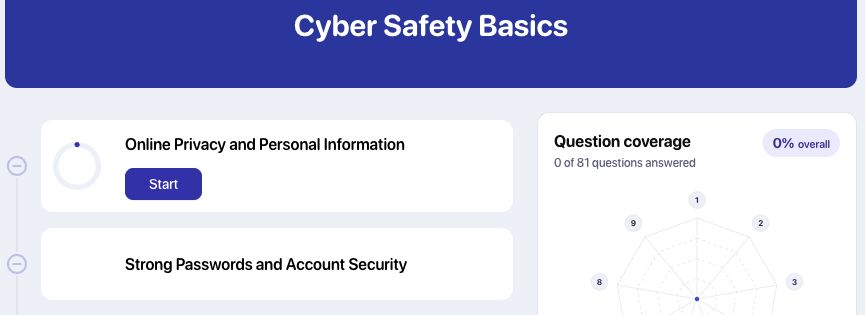
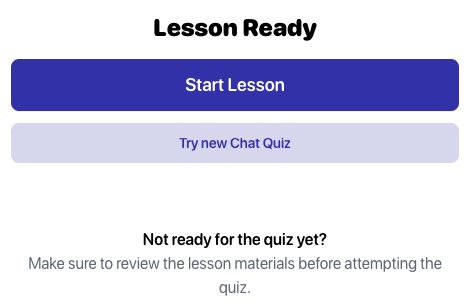
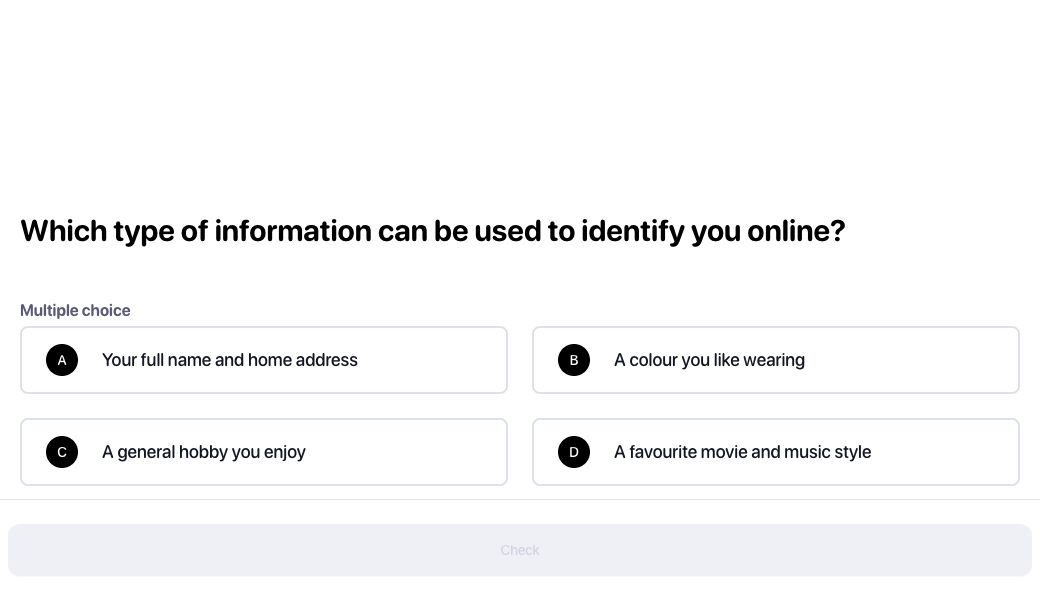
Use Close if you need to leave a session. Reopen the module to check your current state; leaving early is not the same as completing the lesson. If progress has not changed, check for an unfinished question or final result step before starting another attempt.
Understand completion and question coverage
Question coverage shows how many distinct questions you have answered in each lesson and across the module. It is separate from required-module completion: a completed lesson can still contain questions you have not encountered.
Use Review to revisit completed material. Where unanswered questions and rewards remain, you may see Review & earn. Additional coverage and rewards do not replace the organization's required completion status.
For reminders and deadlines, use the required or overdue training view. For refresher exercises offered after training, see Defence Boosts.
Follow a learning path
Open Learn > Learning Paths and select an available path. Expand a section if needed, then choose the next available module. The path shows its progress and which steps are available or still locked.
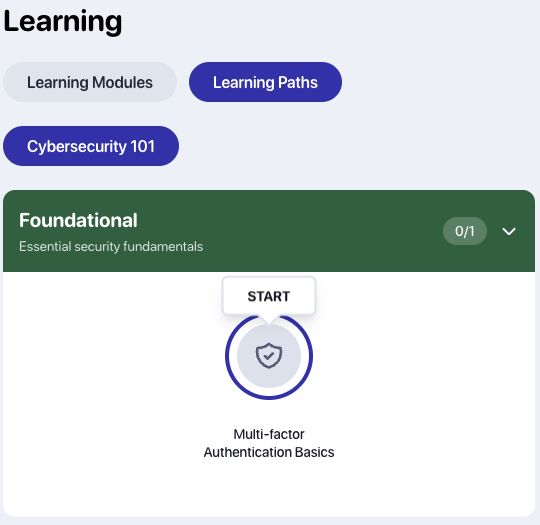
Complete prerequisite steps before expecting later nodes or path rewards to unlock. Path progress organizes your learning; check required assignments separately if your organization has assigned specific modules.
Use the rest of the learner portal
| Area | What to do there |
|---|---|
| Your next steps | Find available or upcoming Defence Boost refresher exercises and recommended modules. |
| SCAM Insights | Open assigned scam-awareness stories from Home when offered, and read through the available story material. |
| Your Rank / Cyber Guardian | Review Awareness Rank progress and your guardian. XP, rewards, and rank are separate from assignment deadlines. |
| Leaderboards | View the leaderboards available to your account and their standings. Availability depends on the organization or competition. |
| Profile | Review your profile and badge shelf, and open account settings. |
| Shop / inventory | Explore available cosmetic items and items you own. Check the displayed cost and item details before spending coins. |
| Data Breaches | Review breach information associated with your account and the actions recommended on the relevant breach page. |
When Cybersecurity Awareness Month games are offered, Home can show Threatle, ThreatGrid, and Hackman. The cards show a one-play-per-day limit. Use the game's own help and reset information. Playing a game does not, by itself, complete an assigned training module.
Update profile and notification settings
Open Profile, then the settings control. Settings includes Profile Details, Organizations, and Notifications.
In Notifications, optional topics offer channel preferences such as Email and Push. Training reminders, Learner invitations, Phishing simulations, and Reports and organisational notices are organization-managed. Contact your administrator about those messages rather than expecting an optional notification switch to disable them.
For the difference between Boost reminder channels and stopping optional module refreshers, follow Defence Boost notification settings.
Troubleshooting
My organization's training is missing
Check that you signed in with the invited work identity. Search under Learn, review available assignment filters, and ask your administrator to confirm that your learner record is linked and enrolled. Creating another account can make the mismatch harder to resolve.
A lesson or path step is locked
Finish the preceding available work and revisit the module or path. A path can have prerequisites, and content must be available to your account. Ask your administrator if required training still cannot be opened.
Check is disabled
Read the question instructions and make the required selection or entry first. The unanswered multiple-choice example above intentionally has a disabled Check button.
Progress, rank, and coverage show different figures
They measure different things. Required completion tracks assigned work; question coverage tracks questions encountered; XP and rank track learning rewards. Return to the assignment or module completion view to confirm required work.
I have no Defence Boosts or SCAM Insights
These appear when an opportunity or story is available to your account. Continue required training or browse available modules. An empty section does not confirm that all assignments are complete.
I still receive required training messages after changing preferences
Organization-managed categories remain under your organization's control. Ask your administrator about the assignment, recipient identity, or learner status involved.
If you need help, contact your organization administrator or Prventi support with the module name, visible message, and approximate time. Do not send passwords or sign-in codes.