Google Workspace Allowlisting
Phishing attack simulations allowlist and configuration settings for Google Workspace
Phishing attack simulations allowlist and configuration settings for Google Workspace
Allowlist Prventi email
- Sign into your Google Workspace admin console
- Navigate to Apps > Google Workspace > Gmail
- Navigate to Spam, phishing and malware
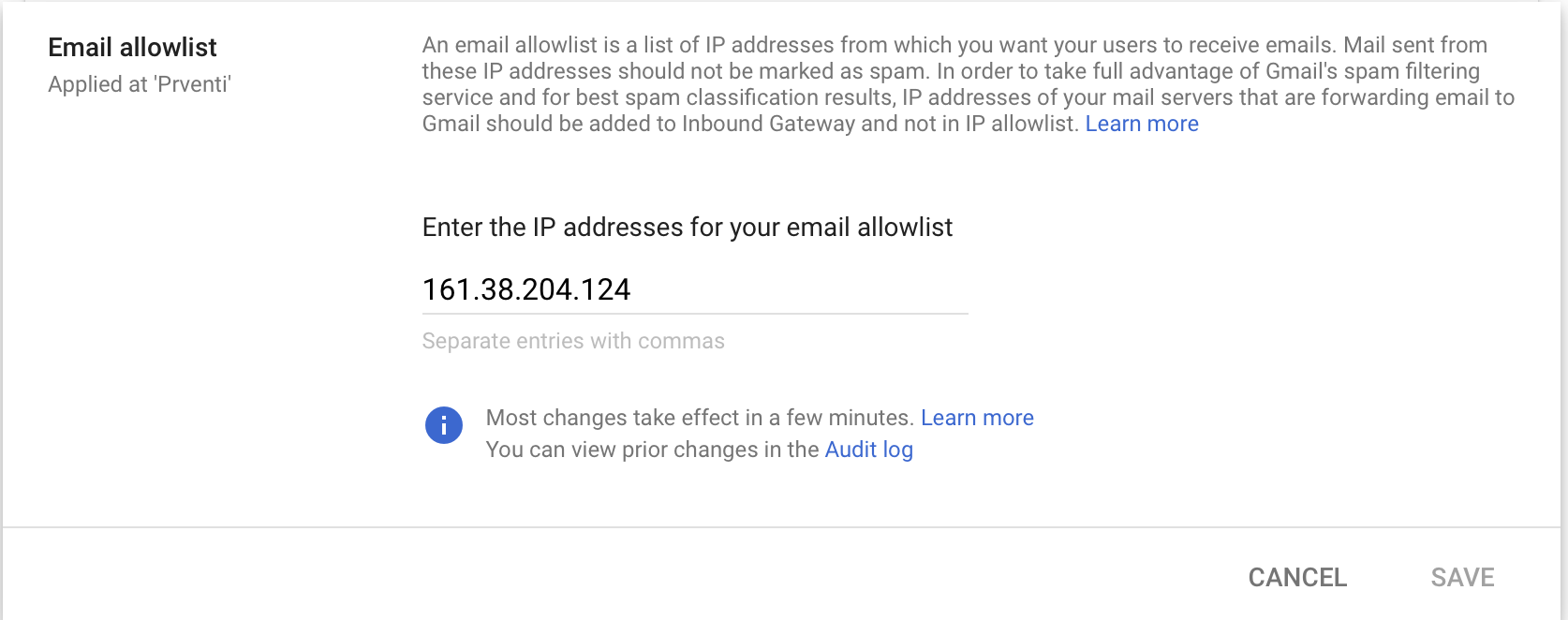
- Edit the Email allowlist and add the Prventi IP addresses below and Save
| IP Address | Description |
|---|---|
| 161.38.204.124 | Phishing server |
Add an inbound gateway
Note:
After you allowlist an IP address, messages that come from that IP address won't be put in the spam label. However, users who receive email from that IP address are likely to still see a Gmail warning banner on those messages (for example, This email looks suspicious)
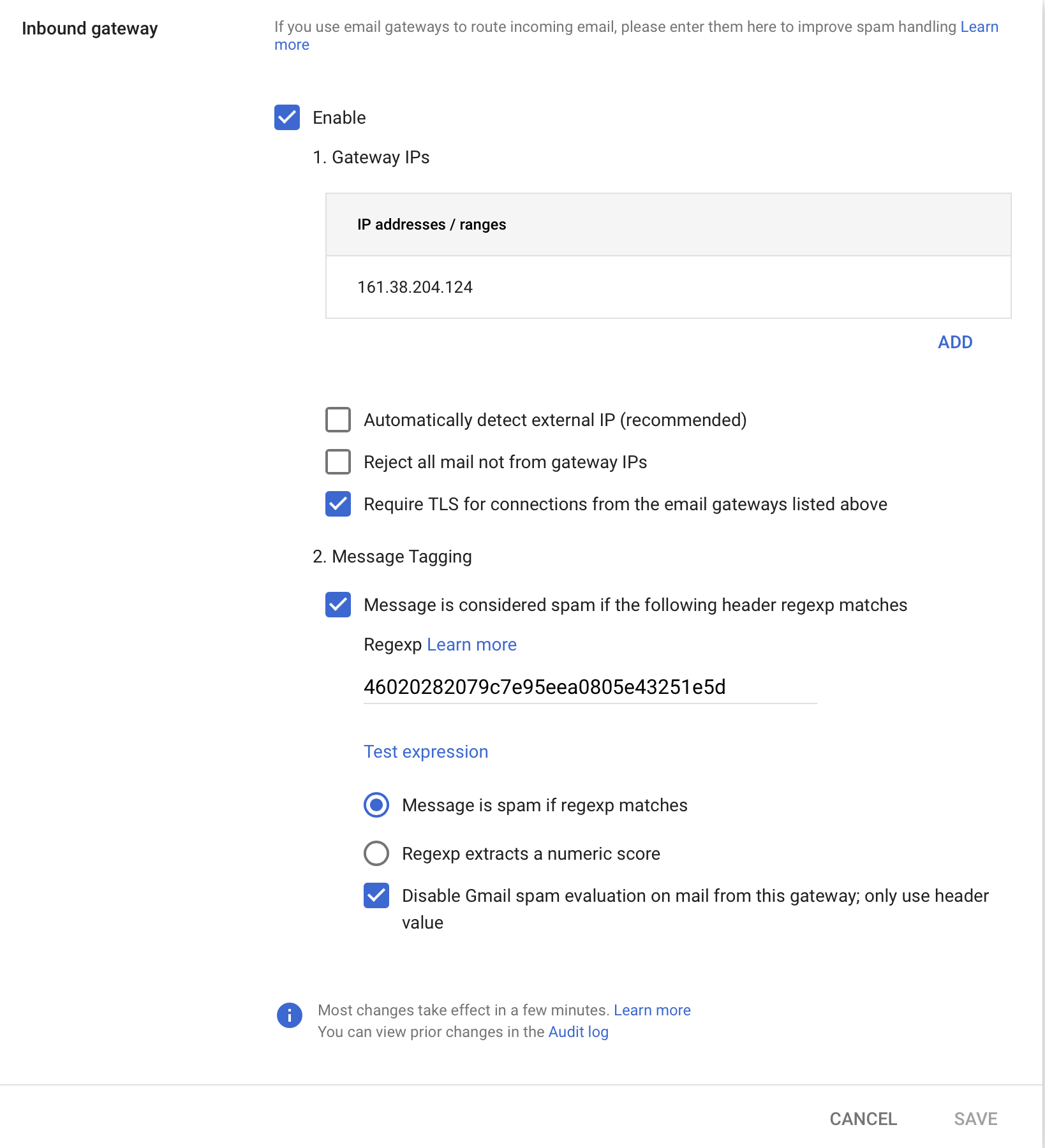
Adding the Prventi mail server as an inbound gateway can prevent the banner from showing. 1. Navigate to Spam, phishing and malware 2. Enable
Inbound gateway3. Add the IP address from the table above 4. DeselectAutomatically detect external IP (recommended)5. DeselectReject all mail not from gateway IPs6. SelectRequire TLS for connections from the email gateways listed above7. SelectMessage is considered spam if the following header regexp matches8. Enter46020282079c7e95eea0805e43251e5das the regex value 9. SelectMessage is spam if regexp matches10. DisableGmail spam evaluation on mail from this gateway; only use header value